Installation Steps
Basic Installation
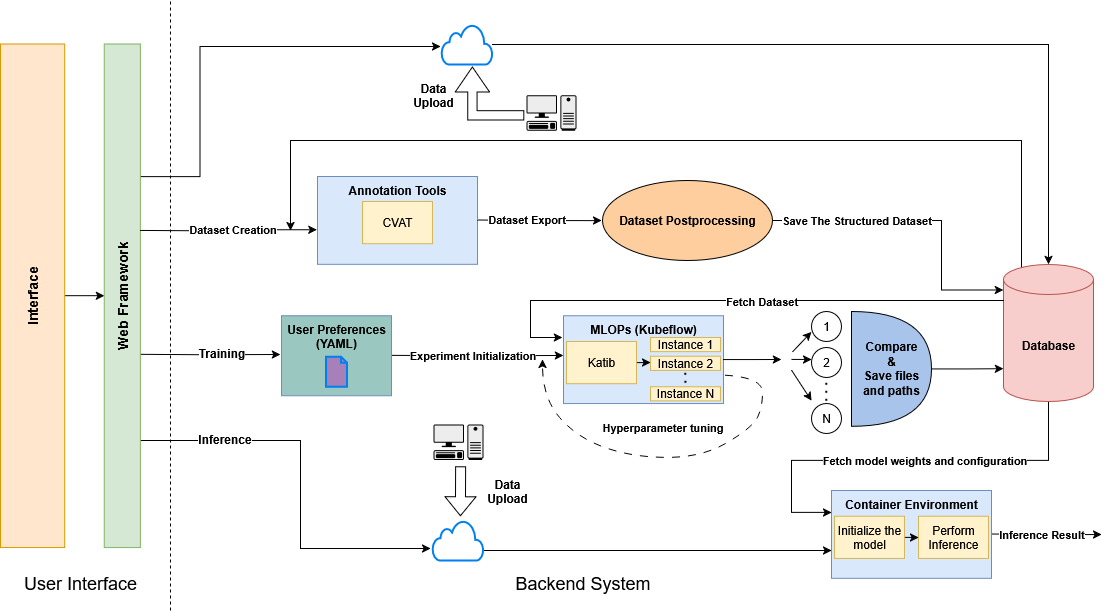
The whole platform architecture is depicted in the following diagram:
Minimum system requirements for a local installation are:
- CPU: at least 8 cores
- RAM: at least 32 GB
- GPU: NVIDIA GPU with at least 16 GB VRAM
- OS: Ubuntu 22.04 or newer
- Browser: Google Chrome or Microsoft Edge
Before You Start
Make sure that you have cloned the following repository on your local machine:
git clone https://github.com/TEXTaiLES/AmalthAI
-
The
AmalthAI_WebAppfolder contains the web app code, which is necessary for the platform's UI. -
The
Backendfolder contains all the necessary code for the platform's functionality which includes machine learning models, data processing scripts, and deployment configurations.
Step 1 - Docker Installation
Make sure that you have a local installation of Docker. You can follow the installation process described here:
Step 2 - kubectl and kind Installation
Instead of a full Kubernetes installation, this platform uses kind (Kubernetes in Docker) for local cluster management. For kubectl installation, follow the instructions here. For kind installation, follow the instructions here.
Step 3 - Cluster Setup and Katib Installation
Create the kind cluster:
kind create cluster --name=kubeflow --config=cluster-config.yml
docker exec -ti kubeflow-control-plane ln -s /sbin/ldconfig /sbin/ldconfig.real
The cluster-config.yml file can be found under the Backend folder.
Install Helm:
sudo snap install helm
Before you continue, make sure to install the NVIDIA toolkit on the local machine to establish connection with GPU resources.
Install NVIDIA GPU Operator:
helm repo add nvidia https://helm.ngc.nvidia.com/nvidia || true
helm repo update
helm install --wait --generate-name \
  -n gpu-operator --create-namespace \
  nvidia/gpu-operator --set driver.enabled=false
Install Katib (standalone):
kubectl apply -k "github.com/kubeflow/katib.git/manifests/v1beta1/installs/katib-standalone?ref=v0.17.0"
Also, ensure that the cluster:
- has at least one directory shared between the cluster and the local machine (located inside the
config.ymlfile underextraMountsascontainerPathandhostPathrespectively).
When the above directory is mounted, make sure that you move every folder from the Backend folder inside that directory so that the three tasks are accessible from the Katib pipelines.

Step 4 - Docker Images Setup
Machine learning models require appropriate environments to run on. Because the platform is Kubernetes-based, there is need for ready-to-use docker containers.
1) For the semantic segmentation and the classification mode, to run the models, a Docker container based on PyTorch is needed.
First of all, download the basic image using the following command:
docker pull nvcr.io/nvidia/pytorch:22.12-py3
After pulling the base image, you have to create an updated image with all the necessary libraries installed. To do that, change your directory to Backend/Segmentation/ and utilize the Dockerfile inside that folder by running the following command:
docker build -t segm_cls_image .
The Platform's backend dynamically creates containers on demand for each segmentation, classification and object detection task. These containers are single-use and they are instantiated only for the duration of the task execution and automatically destroyed upon completion.
2) For object detection task, you can use the official Ultralytics Docker image that has all the necessary libraries installed for running YOLO models.
To build this image locally, you can perform the following steps:
docker pull ultralytics/ultralytics:8.4.112

Step 5 - Upload docker images into kind cluster
To upload a locally built Docker image to your Kubernetes cluster, you have to run the following command:
kind load docker-image myimage:latest --name name-of-your-cluster
For the AmalthAI platform, you have to upload both the segm_cls_image and the ultralytics/ultralytics:latest images into the kind cluster.
Step 6 - CVAT Installation
For the annotation purposes of this platform, we utilize CVAT annotation tool. To install it on your system, follow the instructions that are provided here.

Step 7 - VLM Installation
For the platform's VLM-based inference (visual description and misclassification explanation), the platform uses vLLM to serve Qwen2-VL-2B-Instruct.
First, pull the vLLM OpenAI-compatible server image:
docker pull vllm/vllm-openai:latest
Then, start the container on the textailes Docker network:
docker run --name qwen-vlm \
  --network textailes \
  --gpus all \
  --restart always \
  -v ~/.cache/huggingface:/root/.cache/huggingface \
  -p 8000:8000 \
  --shm-size=4g \
  vllm/vllm-openai:latest \
  --model Qwen/Qwen2-VL-2B-Instruct \
  --gpu-memory-utilization 0.85 \
  --max-model-len 16384
This exposes an OpenAI-compatible API on port 8000 that the AmalthAI backend uses as the VLM inference endpoint.
Step 8 - Platform UI Setup
Before launching the application, both the config.yml and docker-compose.yml files in the /AmalthAI_WebApp folder must be configured according to your local environment.
config.yml Configuration
Open /AmalthAI_WebApp/config.yml and verify the following settings:
- The Docker image names under
imagesare correct. base_host_path_outpoints to the host directory containing theSegmentation,Classification, andObjectDetectionfolders.base_host_pathpoints to the corresponding data directory inside the container.- The
chown_uidandchown_gidvalues match the user and group IDs of the host machine. - The required service URLs, tokens, and other configuration parameters are correctly set.
For example:
paths:
  base_host_path: /data
  base_host_path_out: /home/user/kubeflow/kind-data
In this example, /home/user/kubeflow/kind-data is the directory on the host machine that contains the three task folders:
/home/user/kubeflow/kind-data/
├── Segmentation/
├── Classification/
└── ObjectDetection/
docker-compose.yml Configuration
The docker-compose.yml file must also be updated to match the paths and services configured above.
In particular, the host path mounted to /data must correspond to base_host_path_out in config.yml.
For example, if config.yml contains:
base_host_path_out: /home/user/kubeflow/kind-data
then docker-compose.yml should contain:
volumes:
  - /home/user/kubeflow/kind-data:/data
This mapping makes the same host directory available inside the AmalthAI container at /data.
Also verify that:
- The remaining host paths under
volumesare correct for your machine. - The Kubernetes configuration is correctly mounted through
/root/.kube/. KUBECONFIGpoints to the correct Kubernetes configuration file.HESTIA_BASE_URLandHESTIA_API_KEYcontain the correct Hestia configuration.AMALTHAI_URLis replaced with the URL/domain used to access the application.- The external
textailesDocker network exists on the host machine.
After configuring both files, build the AmalthAI Docker image.
1) Open a terminal inside the /AmalthAI_WebApp folder and run:
docker build -t amalthai .
2) After the build is completed, start the application using Docker Compose:
docker compose up -d
3) Verify that the container is running:
docker ps
4) The application can then be accessed through the configured AMALTHAI_URL. For a local installation using the default port, open:
http://0.0.0.0:8056