Object Detection Mode
In object detection mode, the model identifies and locates objects within an image by drawing bounding boxes around them. This allows the user to train the model to recognize and classify multiple objects in a single image.
Dataset Creation
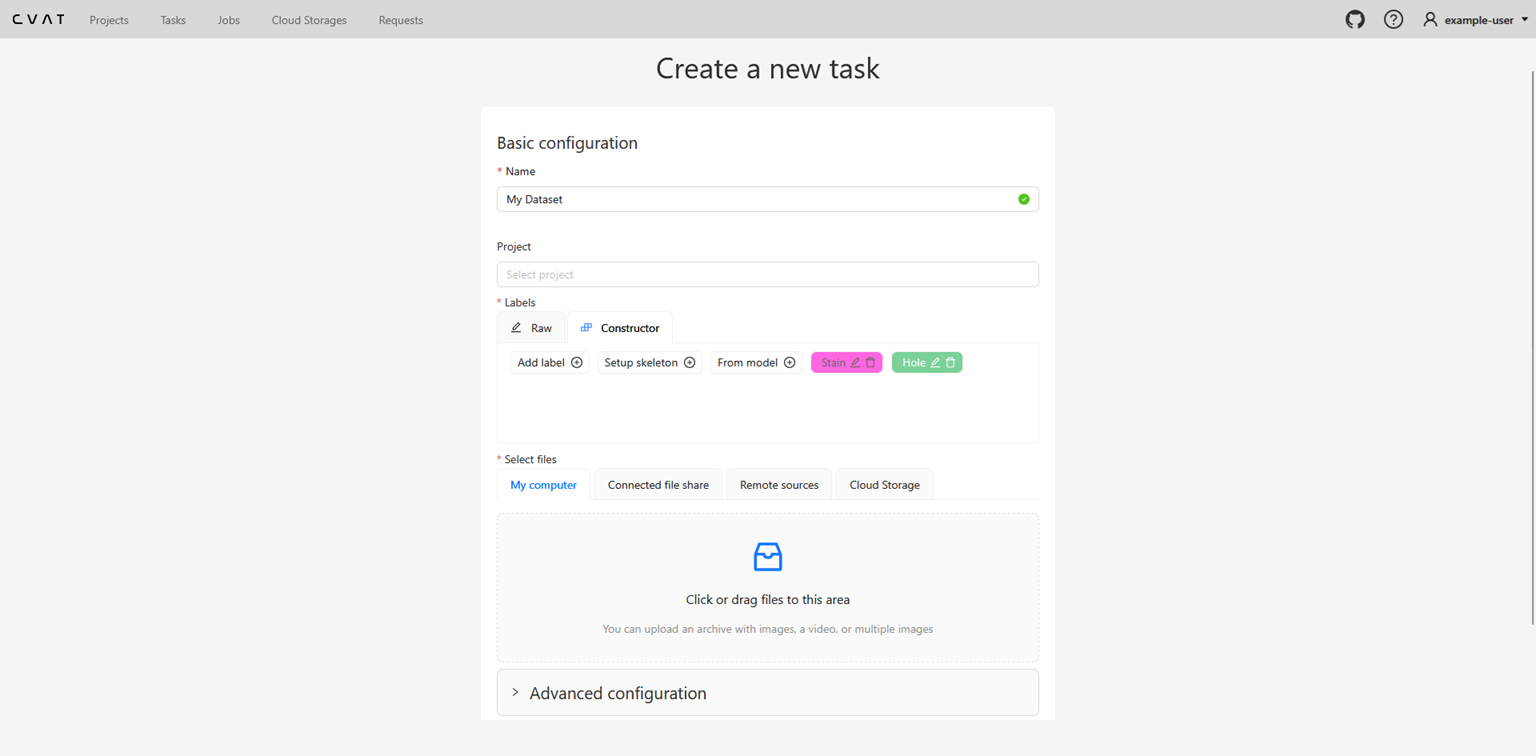
To start creating a dataset for Object Detection, follow these steps:
- Click the View Collections button on the Home page.
- Click the Add a new Detection dataset button to create a new dataset.
- Fill the appropriate information for your dataset, such as name, description and register your classes.
- Upload images to the dataset by clicking on the Upload Images region.
- Press Submit and Open Button to proceed with dataset annotation.
The dataset creation page will look like the following:
Annotation Process
Once the dataset is created, you can start annotating the images. The annotation interface provides various tools to facilitate the annotation process:
- Draw bounding box Tool: Allows users to draw bounding boxes around objects of interest to assign them to a specific class.
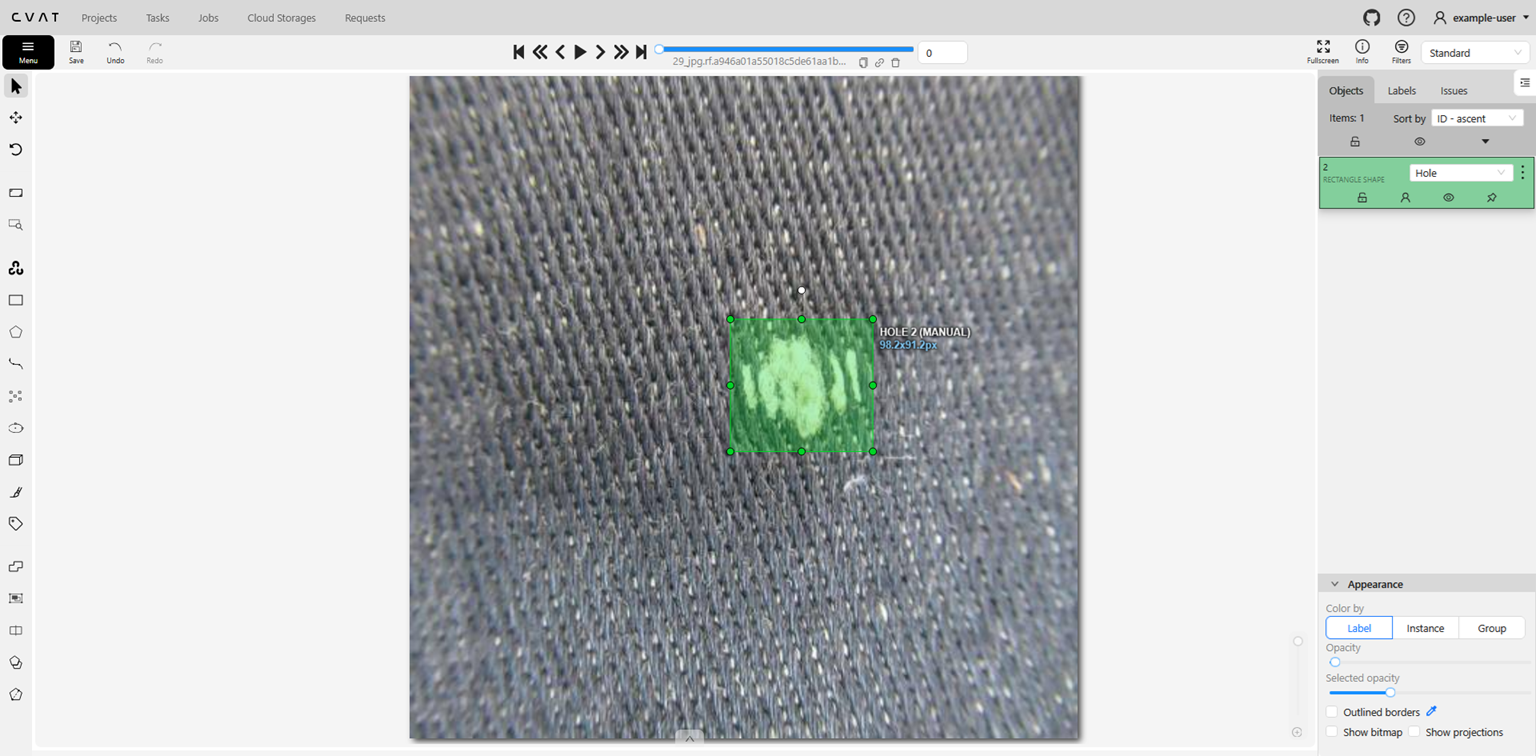
Important Note: For Object Detection, the Draw bounding box Tool is the primary tool used for annotation.
Dataset Registration
After completing the annotation process, you have to export the dataset using the Ultralytics YOLO Detection 1.0 export format from CVAT.
The generated bounding boxes can be found under the labels/ directory of the exported dataset.
Finally, the dataset should follow the structure below:
DatasetName/
├── train/
│   ├── images/
│   │   ├── image_001.jpg
│   │   ├── image_002.jpg
│   │   └── ...
│   └── labels/
│       ├── image_101.txt
│       ├── image_102.txt
│       └── ...
├── valid/
│   ├── images/
│   │   ├── image_001.png
│   │   ├── image_002.png
│   │   └── ...
│   └── labels/
│       ├── image_101.txt
│       ├── image_102.txt
│       └── ...
└── data.yaml
data.yaml should contain:
train: ../train/images
val: ../valid/images

nc: N #Define the number of classes
names: ['Label1', 'Label2', ...] # Class Names
Once the dataset structure is finalized:
- Compress the
DatasetName/directory into a.ziparchive. - Upload the generated
.zipfile to AmalthAI using the Add a new detection dataset button.
Training Initiation
After dataset is uploaded, you can initiate the training of your object detection model. Follow these steps:
- Navigate to the Train an ML model page.
- Select the Object Detection mode.
There are two main fields that need to be filled:
- Select Model: Choose the model architecture you want to use for training.
- Select Collection: Provide a name for your model.
For the available models, you can find information about them by clicking on the Currently Available models arrow and click on the preferred model to see more details about its architecture.
Inference Process
Once the model is trained, you can use it for inference on new images. To perform inference, follow these steps:
- Navigate to the Inference page.
- Select the trained Object Detection model from the list.
- Upload the image you want to perform inference on.
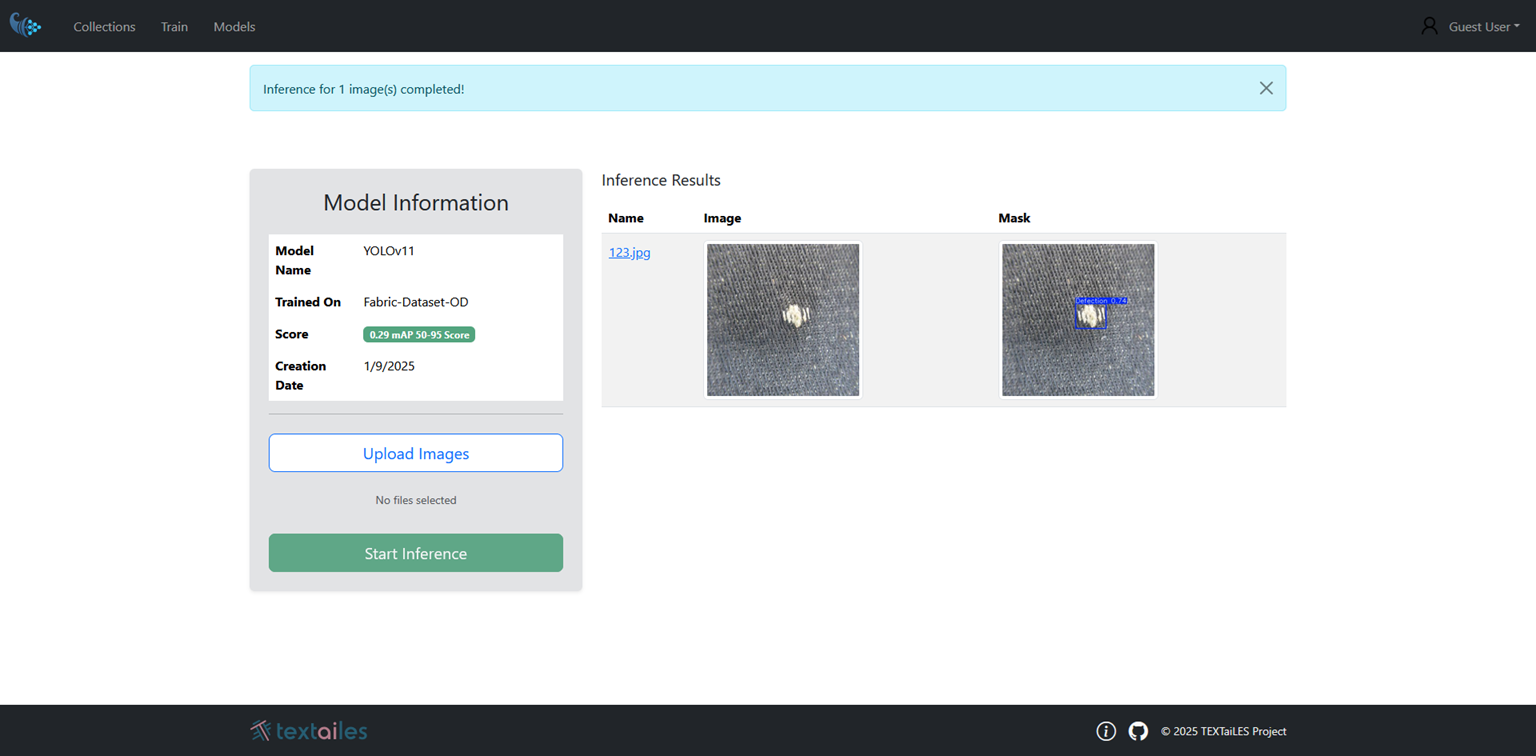
- Click the Run Inference button to see the detection results.
Once the Inference process is complete, the detected objects will be displayed directly into the same page, showing the bounding boxes around the recognized objects.
Evaluation Metric
mAP 50–95 is an object detection metric that measures both how well a model finds objects and how accurately it localizes them. It is computed by first calculating Average Precision for each class, where a prediction is considered correct if its overlap with the ground truth exceeds a given IoU threshold. Instead of using a single threshold, AP is computed at multiple IoU thresholds ranging from 0.50 to 0.95, and then averaged across all classes and all thresholds. This makes the metric stricter because it evaluates performance under increasingly precise localization requirements.